Introducing Huma-2
One Streaming Foundation, Two SDKs: Building Real-Time AI Avatars with TruGen
How TruGen's JavaScript and Python SDKs let you bring live, conversational avatars into the browser, the desktop, and the backend, all on the same real-time core.

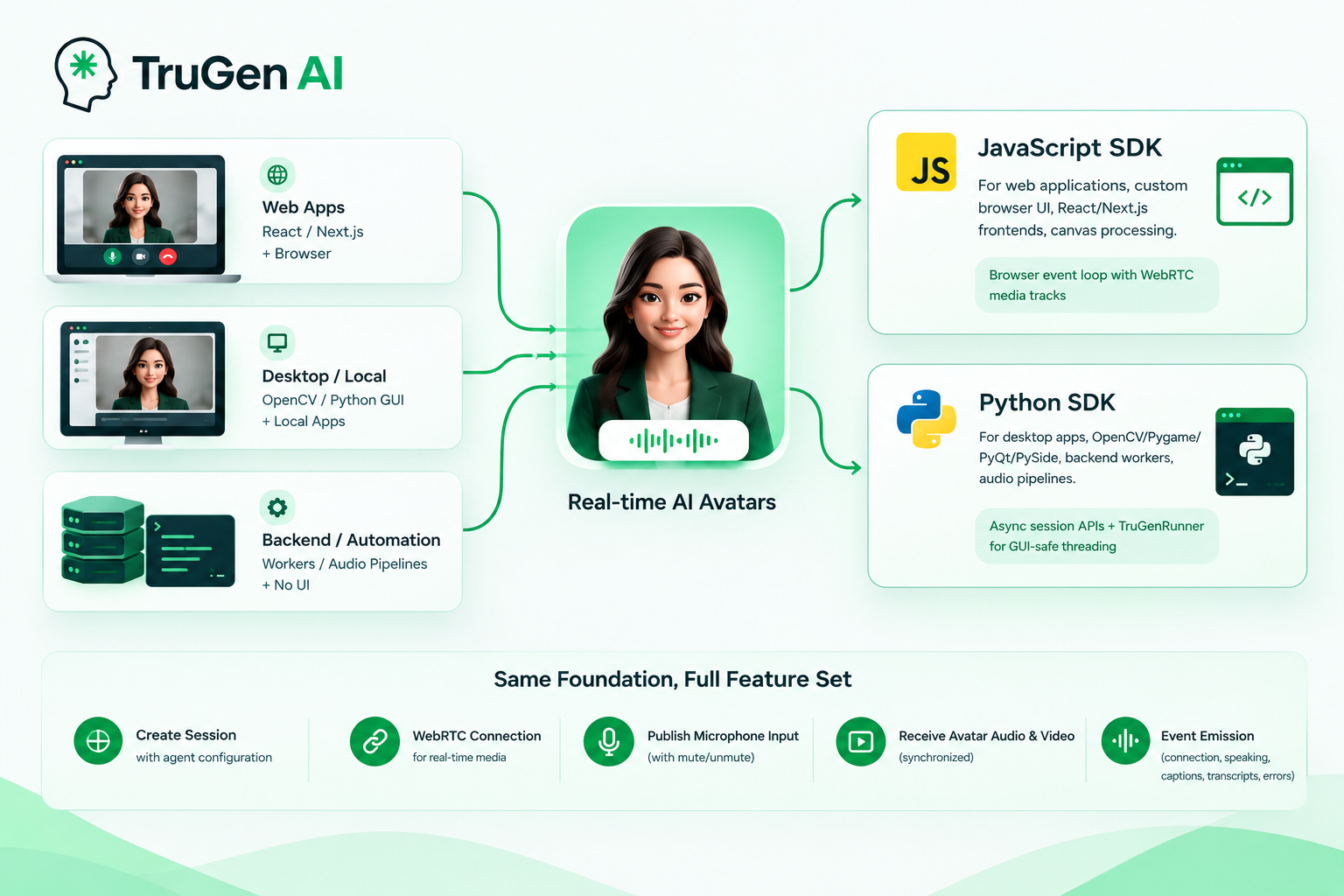
Real-time AI avatars don't live in just one place. Sometimes the conversation happens in a web app using React or Next.js. Sometimes it happens in a desktop app or a local kiosk, rendered through OpenCV or a Python GUI toolkit. And sometimes there's no end user at all, just a backend worker starting sessions, injecting audio, and checking transcripts.
We didn't want developers to choose between these worlds, so TruGen offers two SDK paths: the JavaScript SDK for browser applications, and the Python SDK for desktop, GUI, backend, and automation workflows.
This post walks through what the two SDKs share, where they differ, and how to use each one well, from the first connection to production.
Same foundation, different homes
Both SDKs sit on the same streaming foundation. Whichever one you use, the SDK:
- Creates a session for a TruGen agent.
- Establishes a WebRTC connection.
- Publishes microphone input.
- Receives synchronized avatar audio and video.
- Emits events for connection state, speaking activity, captions, transcripts, and errors.
What changes is the environment each SDK is built for:
| SDK | Best for | Runtime model |
|---|---|---|
| JavaScript SDK | Web apps, custom browser UI, React/Next.js frontends, canvas processing | Browser event loop with WebRTC media tracks |
| Python SDK | Desktop apps, OpenCV/Pygame/PyQt/PySide, backend workers, audio pipelines | Async session APIs plus TruGenRunner for GUI-safe threading |
Under the hood, every TruGen app has three moving parts. The agent configuration (selected by the agent ID) determines the avatar, model pipeline, voice, tools, and behavior. Session authentication uses your API key to create a short-lived conversation session. And real-time media transport handles the WebRTC connection, sending user audio, receiving avatar audio and video, and emitting lifecycle events.
Getting connected
In the browser
In a JavaScript app, your server creates a session token, and the browser passes that token into createClient. From there, attaching the avatar's video is a single event listener:
import { createClient, TruGenEvent } from "@trugen/js-sdk";

const tokenResponse = await fetch("/api/session-token", { method: "POST" });
const { token } = await tokenResponse.json();

const session = await createClient({ token });
const videoElement = document.getElementById("avatarVideo") as HTMLVideoElement;

session.on(TruGenEvent.VIDEO_STREAM_STARTED, (track) => {
  track.attach(videoElement);
});

await session.connect();
In Python
For local development and trusted backend environments, you can use TruGenClient directly. It creates the session and connects to the room, and it can optionally enable speaker playback with built-in Acoustic Echo Cancellation:
import os
from trugen import TruGenClient

client = TruGenClient(api_key=os.getenv("TRUGEN_API_KEY", ""))
session = await client.create_session(agent_id=os.getenv("TRUGEN_AGENT_ID", ""))

await session.connect()
await session.enable_audio_output()
Why your API key never belongs in the browser
You may have noticed that the JavaScript example never touches an API key. That's deliberate.
TruGen uses a two-tier auth model. Your API key stays on your server and is used to request a conversation token. The session token is a short-lived credential that gets passed to the client. The reason is simple: anything shipped in a browser bundle can be inspected by end users. So a production JavaScript app should expose an endpoint such as /api/session-token, create the token server-side, and return only the temporary token to the browser.
Python follows the same principle with a bit more flexibility. For local tools, backend jobs, and trusted machines, passing the API key directly into TruGenClient is fine. But once you ship a desktop app to users, the same rule applies: keep the key on your server and have the app request a short-lived session token before connecting.
Rendering the avatar
Browser-native video
In the browser, the avatar is just a media track. Add a <video> element, and attach the track when it starts:
<video id="avatarVideo" autoplay playsinline></video>If you want more control, such as drawing to a canvas, inspecting pixels, running filters, or feeding a custom pipeline, the SDK also offers a lower-level frame callback:
typescriptconst unsubscribeFrame = session.onVideoFrame((frame) => {
// Draw to canvas, inspect pixels, run filters, or feed a custom pipeline.
if (typeof frame.close === "function") {
frame.close();
}
});Solving the main-thread problem in Python
Python brings a different challenge. GUI toolkits like OpenCV typically want to own the main thread, while the WebRTC session runs asynchronously. Put both in the same place and they compete.
That's what TruGenRunner is for. It keeps the async WebRTC session on a background thread while your main thread stays free to render frames:
import cv2
import os
from trugen import TruGenClient, TruGenRunner

async def create_session():
    client = TruGenClient(api_key=os.getenv("TRUGEN_API_KEY", ""))
    session = await client.create_session(agent_id=os.getenv("TRUGEN_AGENT_ID", ""))
    await session.connect()
    await session.enable_audio_output()
    return session

runner = TruGenRunner(session_factory=create_session)

@runner.on_frame
def show_frame(frame):
    if frame is not None:
        cv2.imshow("TruGen Avatar", frame)
    if cv2.waitKey(1) & 0xFF == ord("q"):
        runner.stop()

runner.run()
cv2.destroyAllWindows()
If your application already owns the event loop cleanly, you can skip the runner and consume frames directly from an async generator:
async for frame in session.video_frames_bgr():
    cv2.imshow("Avatar", frame)
The rule of thumb: use TruGenRunner when a GUI toolkit wants the main thread, and use direct async generators when your own app is already managing the event loop.
Events: the control plane for real-time UX
A live avatar conversation is constantly changing state. The connection comes up, the user starts talking, the avatar responds, captions stream in, and occasionally something fails. Both SDKs expose all of this through events, which makes events the real control plane for your user experience.
One tip matters more than the rest: register your listeners before you call connect(), so your app doesn't miss early media or state events.
In JavaScript, that looks like this:
session.on(TruGenEvent.AGENT_SPEAKING_STARTED, () => {
  console.log("Avatar started speaking");
});
In Python, you register decorators on either TruGenSession or TruGenRunner. Runner callbacks are especially handy when the UI needs main-thread state updates:
@runner.on_event("agent.transcription_final")
def on_agent_transcript(text: str):
    print("[Agent]", text)
The events you'll reach for most often include CONNECTION_ESTABLISHED to move the UI into a live state, CONNECTION_CLOSED and ERROR to trigger cleanup and recovery, AGENT_SPEAKING_STARTED and AGENT_SPEAKING_ENDED to drive captions, waveform UI, or interruption behavior, USER_SPEECH_STARTED and USER_SPEECH_ENDED to show a listening state and capture turn timing, and TEXT_CHUNK_RECEIVED to render streaming captions. For logging, user.transcription_received and agent.transcription_final give you the final user utterances and agent responses.
Controlling and injecting audio
Both SDKs let you mute and unmute the microphone without tearing down the session. For example, in JavaScript:
session.muteInputAudio();
session.unmuteInputAudio();
Python mirrors this with mute_input_audio() and unmute_input_audio().
Sometimes your app needs to feed prerecorded or generated speech into the conversation instead of live mic input. In JavaScript, you can send a browser File or Blob with uploadAudio or sendAudio. In Python, you can stream a WAV file or raw 16-bit PCM bytes:
await session.upload_audio("/path/to/audio.wav")

await session.send_audio(
    data=pcm_bytes,
    sample_rate=48000,
    num_channels=1,
)
One practical tip for Python: mute the microphone before injecting audio and restore the previous mute state afterward. Otherwise, the injected audio can loop back through the local mic and re-enter the speech-to-text pipeline.
Better together
The two SDKs aren't an either-or choice. Many products use both:
- A web dashboard uses the JavaScript SDK for live end-user conversations.
- A Python worker starts test sessions, injects known audio, and validates transcripts.
- A desktop operator console uses
TruGenRunnerto render avatar video, while a web app handles account management.
Because both SDKs share the same streaming foundation, the agent behaves consistently no matter which surface the conversation happens on.
Before you ship
A few habits separate a demo from a production-ready integration:
- Keep API keys on trusted servers, and give untrusted clients only short-lived session tokens.
- Register event listeners before calling
connect(), and always calldisconnect()when the user leaves or the workflow ends. - Handle
CONNECTION_CLOSEDandERRORevents with retry or recovery behavior. - Show clear microphone permission, muted, connecting, connected, reconnecting, and error states.
- Release browser
VideoFrameobjects withclose()when available, and useTruGenRunnerwhen a Python renderer must stay on the main thread.
Wrapping up
Whether your avatar lives in a browser tab, a desktop window, or a backend pipeline, the building blocks are the same: an agent, a secure session, and a real-time media connection driven by events. The JavaScript SDK brings that to the web with browser-native media, and the Python SDK brings it to desktop, GUI, and automation workflows with direct frame and audio control.
Ready to start building? Explore the JavaScript SDK or the Python SDK, and read the JavaScript Production and Python Production guides when you're ready to go live.